Who does what
You
You have the idea. You answer questions, and you say what you like and what you don’t.
Claude
An AI you chat with, in plain English. It asks you questions, then builds the app for you.
NodeGX
A free app for your computer. Your app is built inside it. You can see it there, and change it too.
-
Download Claude
Claude is the AI you’ll talk to. Download the Claude app for your computer and sign in. Building apps needs a paid plan. Pro is enough to start.
Download ClaudeGood to know- The Claude app has a Chat tab and a Code tab. For building with NodeGX, always use Code.
- If it asks you to choose a folder, make a new empty folder called My apps and choose that.
- Already use a different AI coding tool, like Kimi Code or Cline? That works too. Step 3 shows you how.
-
Download NodeGX
NodeGX is free. Choose the version for your computer (Mac, Windows or Linux), install it, and open it.
Download NodeGX -
Connect Claude to NodeGX
In NodeGX, click the blue Connect Claude Code button. That lets Claude build apps in NodeGX.
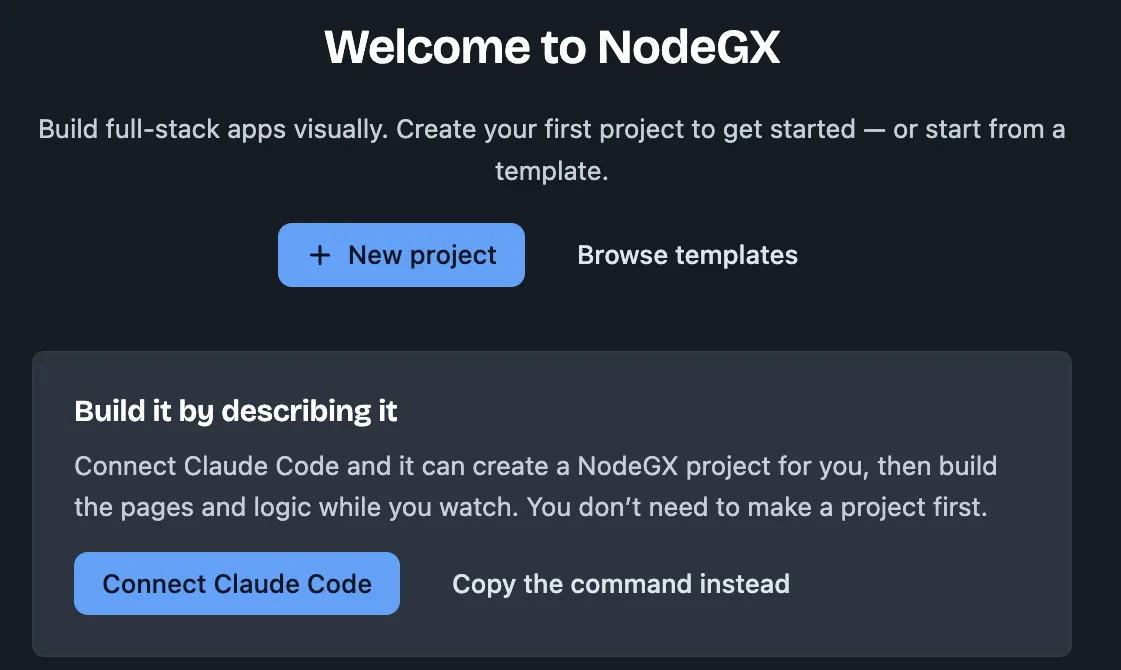
What you see in the middle of NodeGX the first time you open it. Then go back to Claude and start a new conversation in the Code tab. Claude only sees NodeGX in conversations you start after connecting.
Using Kimi Code, Cline or another tool? Click Copy the command instead (next to the button). Paste it into your AI tool and say: “Please add this MCP server so you can use NodeGX.” -
Tell Claude your idea
Copy this message into Claude, then fill in the gaps in your own words. It doesn’t need to be perfect. Claude will ask about anything that’s missing.
Need an idea?Message 1 · your ideaClaude will ask you questions before it builds anything. That’s called planning, or “scoping”. It will probably ask about things like:
- Does anyone need to log in?
- Who can see what?
- What does the app need to remember?
- What do people see the first time, before anything is added?
- Phone, computer, or both?
- Who adds, changes or deletes things?
- Does it send emails, or take payments?
- What should it not do yet?
You don’t need the answers now. It’s fine to say “I don’t know. What would you suggest?”
Words Claude might use, in plain English
- Front end
- The part of the app people see and click.
- Back end
- The part that works behind the scenes: it saves things and does jobs nobody sees.
- Database
- Where the app keeps things, so they’re still there tomorrow.
- Logic, workflow
- The rules. “When someone clicks Book, save it and show a thank-you message.”
- Log in, auth
- People proving who they are, usually with an email and password.
- Stack
- The set of tools an app is built with. With NodeGX, this is already decided for you.
- Hosting, cloud
- Renting a computer on the internet that runs your app, so other people can use it.
- Deploy
- Putting your app onto that computer.
- Domain
- Your app’s web address, like myrunningclub.com.
- MCP, connector
- How Claude talks to NodeGX. You set this up in step 3.
If Claude uses any other word you don’t know, ask “What does that mean?” Every time.
-
Ask Claude to build it
When Claude sums up the plan and it sounds right, make sure NodeGX is open, then send this:
Message 2 · build itGood to know- Claude asks permission before it uses NodeGX. Click Allow.
- The first version is rarely perfect. That’s normal. Tell Claude what you see and what you wanted, like “The list shows everyone, but I only want people coming on Saturday.”
-
Open your app in NodeGX and make it yours
Your app lives in NodeGX. You’ll find it on the NodeGX start screen under Recent projects. Open it to see every page Claude built.
You can change anything: the words, the colours, the pictures, where things go. Claude won’t mind. If you get stuck, go back to Claude and ask for help.
After you change something yourself, tell Claude, so it looks again before its next change:
When you’ve made changes -
Put it online (when you’re ready)
For other people to use your app, it needs to run on a computer that’s always on the internet. This is called hosting. Here’s roughly what it costs:
App that only shows pagesNothing saved, no log-ins. Netlify has a free plan.freeApp that saves thingsLog-ins, bookings, lists. A small rented server from Hetzner, DigitalOcean or Hostinger.~$4–7 / monthYour own web addressA domain name, like myrunningclub.com.~$10–15 / yearDon’t get caught out- A first app doesn’t need anything more expensive than this. If someone offers you a big package, you don’t need it.
- Very cheap prices often mean paying a year or two up front. Check the monthly price, and the price when it renews.
Claude can already help you put a NodeGX app online. Ask: “How do I put this app online?” You’ll need a free GitHub account for this, and the NodeGX guide covers the basics. Soon, NodeGX will do this step for you.
Prefer to watch first?
Your first NodeGX lesson, step by step
Follow along as Richard goes through the first lesson built into NodeGX.
Watch on YouTube YouTube channelSimple Rick Tutorials
More videos on building apps with NodeGX and AI.
See all videosNodeGX also has lessons built in. Open NodeGX and click Learning at the top.
Want to learn more?
The NodeGX guide explains how to build apps with AI and NodeGX. It has two modes:
Stuck? Ask a person
Everyone gets stuck. No question is too small.
Talk to Richard
Richard Osborne is the main developer of NodeGX, and an experienced app maker and trainer. He coaches people through building their first app.
Book a discovery call